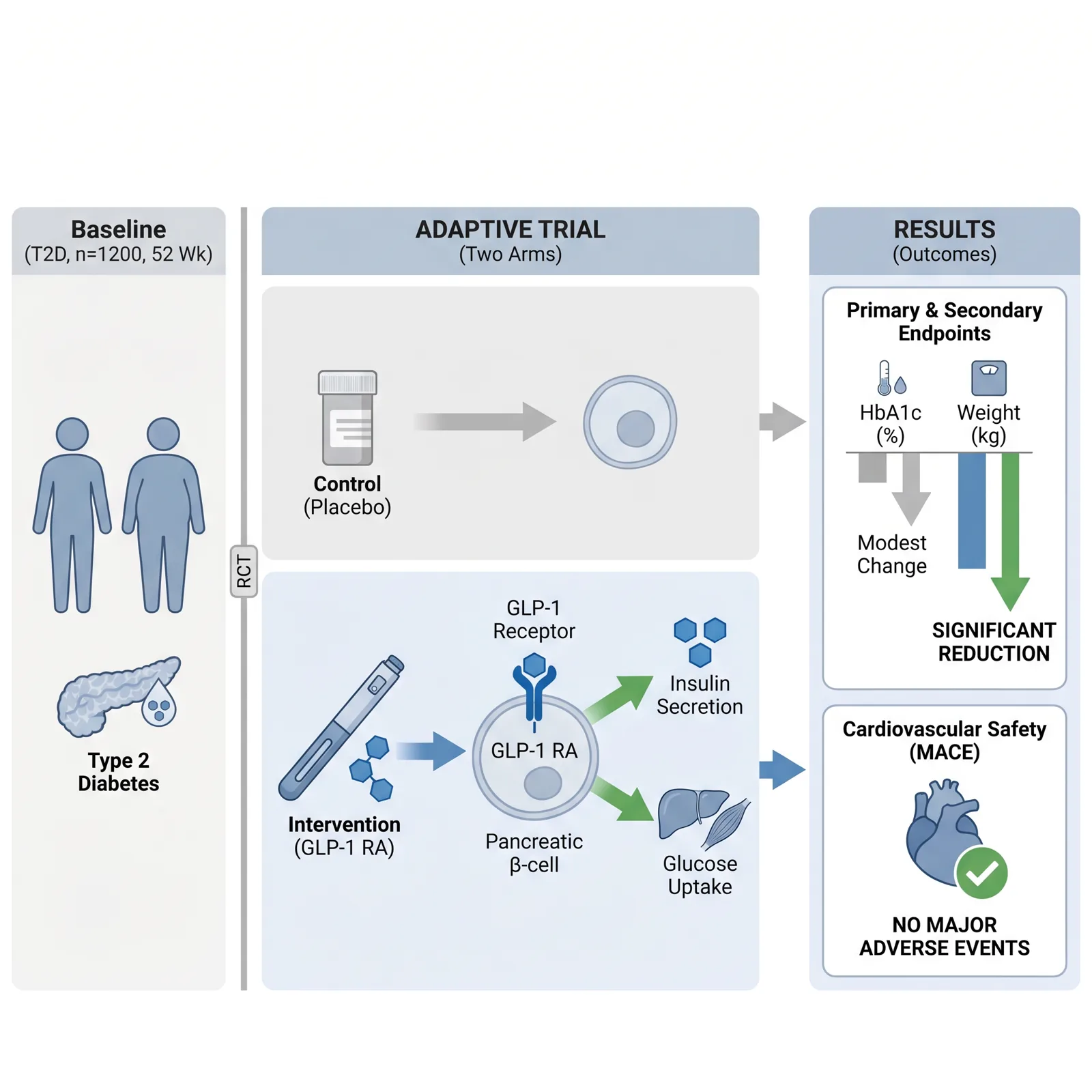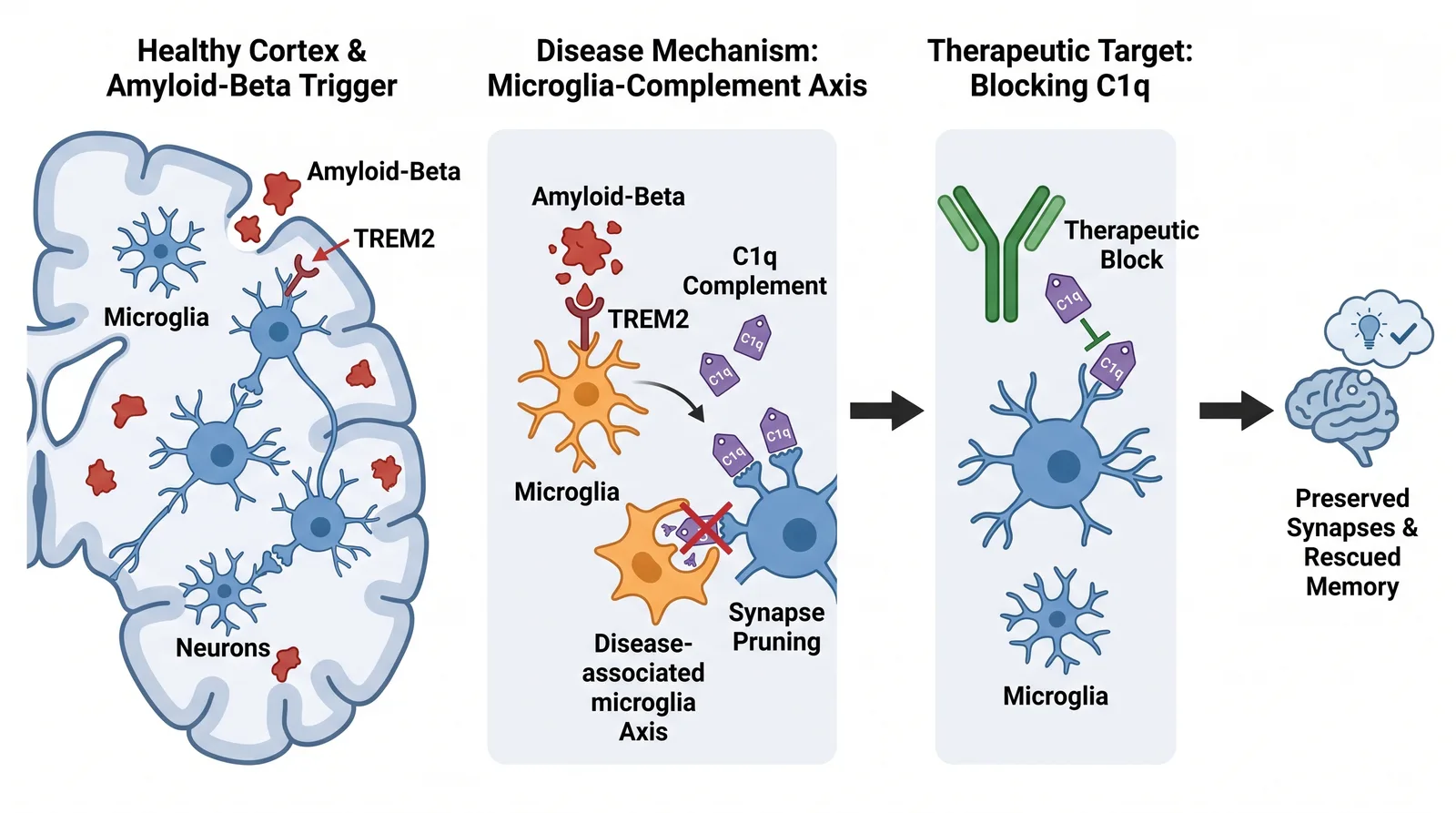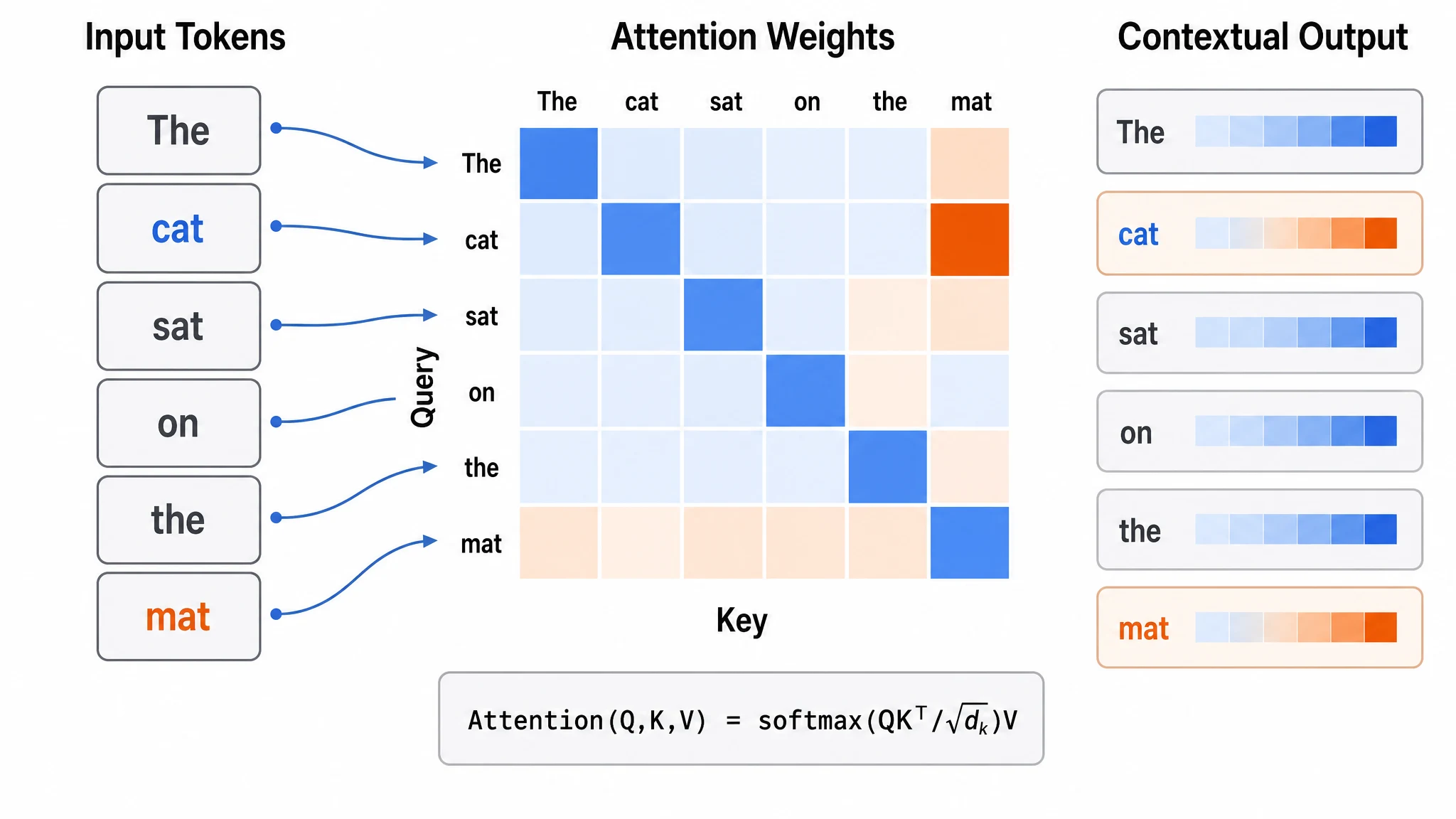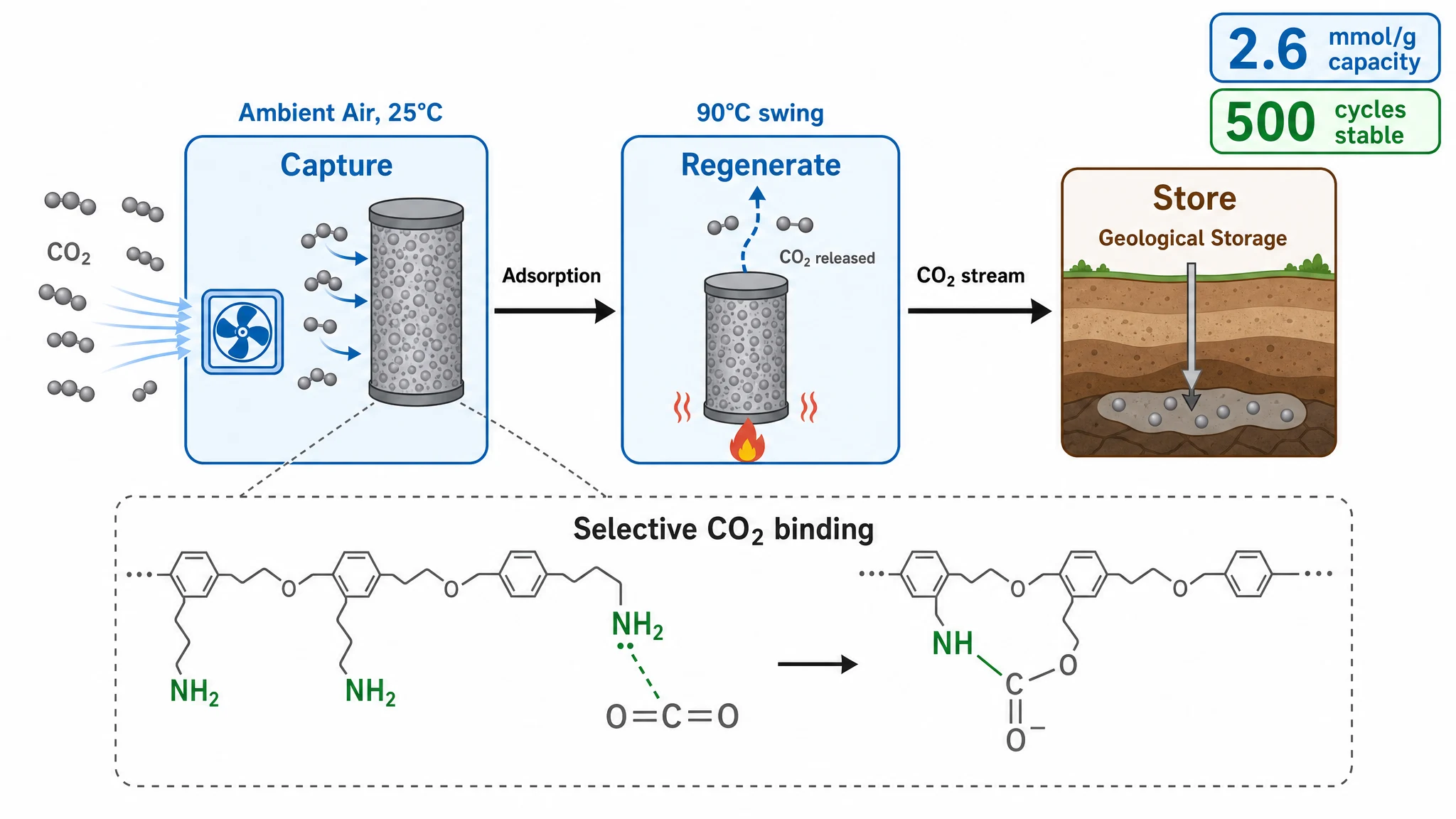
PowerPoint can make a publication-ready graphical abstract: set the slide to your journal's dimensions, build the layout with shapes and icons, keep text minimal, and export at 300 DPI. It works because you already own it — but it has no journal presets and no high-resolution export by default, so the size and DPI steps are manual and easy to get wrong.
Go to Design → Slide Size → Custom Slide Size and enter your target journal's dimensions (for example, a square for Cell Press or a wide landscape for Elsevier). Setting this first means you design at the correct aspect ratio instead of cropping later. Confirm the exact numbers in your journal's requirements.
Sketch the flow on paper first: problem → method → result. A clear left-to-right or top-to-bottom progression reads far better than a crowded slide. Our template layout guide covers which structure fits which type of study.
Use PowerPoint's built-in shapes for containers and arrows to guide the eye. Source scientific icons from a free library and keep a consistent, limited color palette. Group related elements so you can move them as units.
A graphical abstract is visual-first. Use short labels — compound names, step titles, key numbers — in a clean sans-serif (Arial, Helvetica, or Calibri), large enough to stay legible when the image is scaled down.
This is the step that trips people up. PowerPoint exports images at 96 DPI by default — well below the 300 DPI most journals require. You need to either change the export resolution via a registry/preferences setting or export to PDF and convert. Always verify the result with a DPI checker before submitting.
PowerPoint is free and familiar, but for graphical abstracts it has real friction:
For a one-off, these are minor. Across several submissions, they add up.
A dedicated tool removes the manual steps. Graphab presets the canvas size, DPI, and color space for each major journal, gives you layout templates to start from, and exports at the correct resolution — so you spend time on the science, not on slide settings. If you prefer the full manual walkthrough first, see our complete guide to making a graphical abstract.
PowerPoint works if you set the slide size correctly and remember to force a 300 DPI export. If you would rather skip the setup and guarantee the format, start from a journal-ready canvas instead.
Paste your paper abstract and Graphab drafts a publication-ready figure, sized for your target journal.