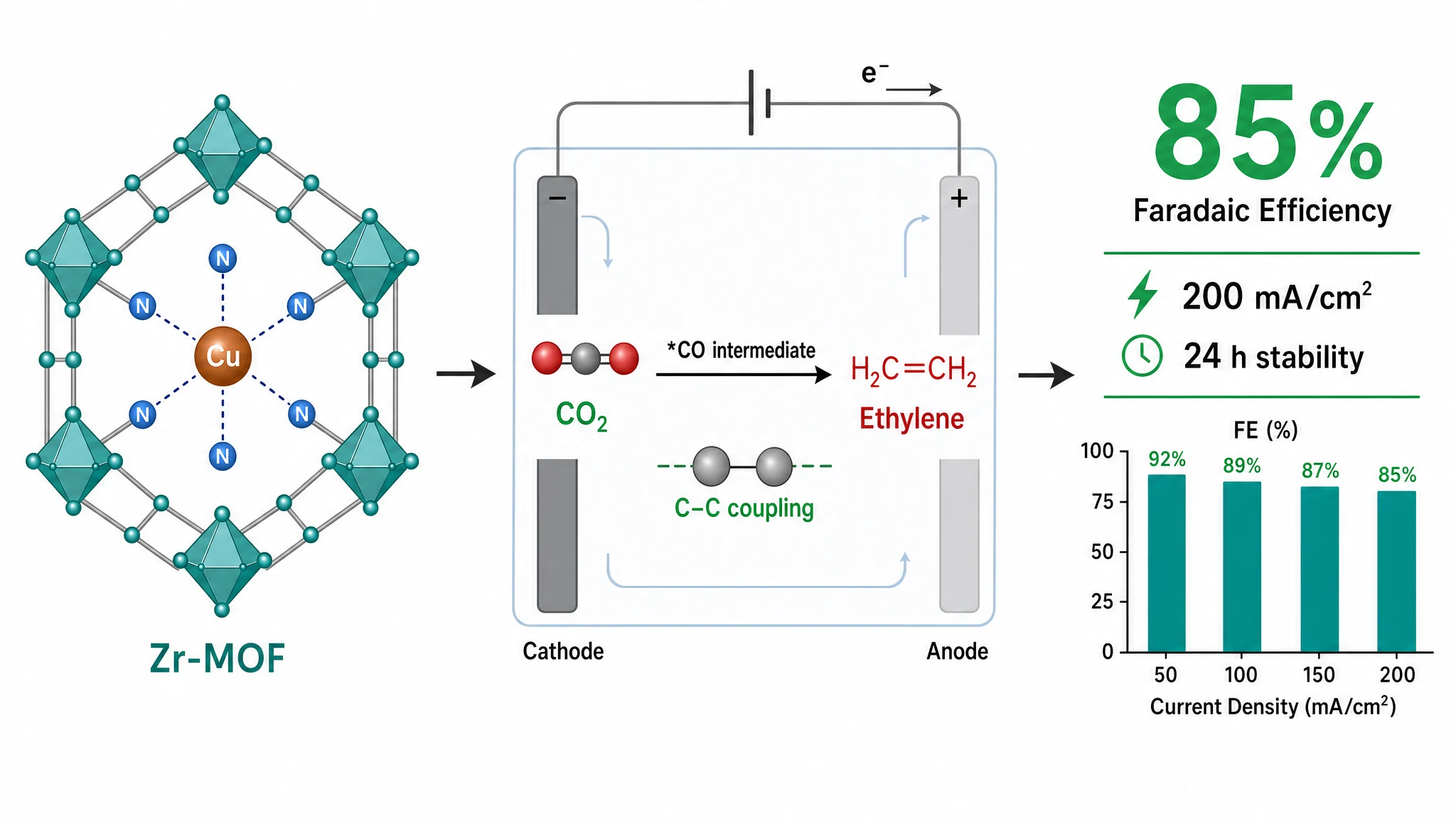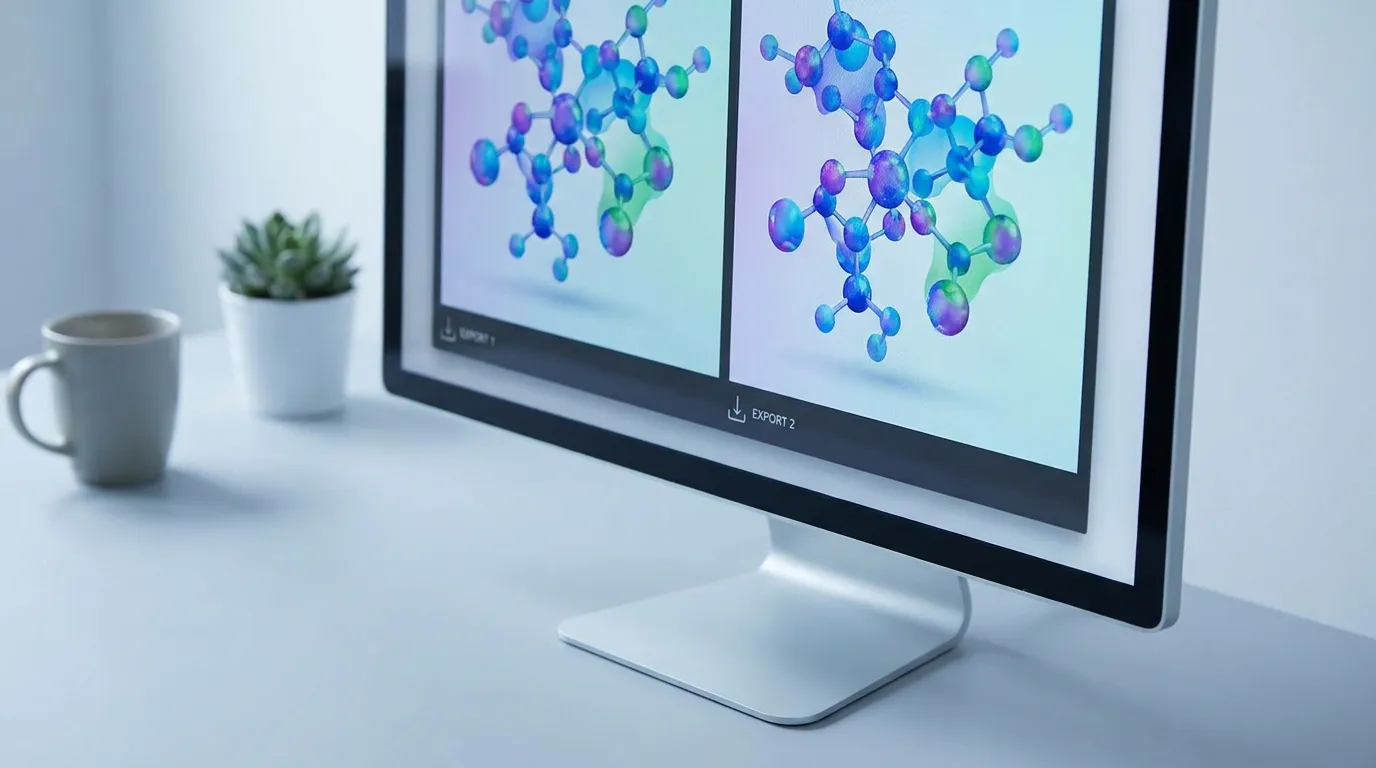
You do not need Adobe Illustrator or Photoshop to make a publication-ready graphical abstract. There are three realistic routes: presentation tools you already own (PowerPoint, Google Slides), a free vector editor (Inkscape), or an AI graphical abstract generator built for the job. Each trades off time, control, and how easily you hit journal-compliant export settings. Here is how to choose.
Illustrator is powerful, but it carries a monthly subscription and a real learning curve — a lot to take on for the one figure most papers need. Photoshop has the same problem and is built for photos, not diagrams. If you make a graphical abstract once or twice a year, a lighter tool almost always makes more sense.
You already know these, and they are free (or already paid for). Set the slide size to your target journal's dimensions, build the figure with shapes, icons, and text boxes, then export as an image.
The catch is resolution. Slides default to about 96 DPI on screen — well below the 300 DPI floor almost every publisher requires. You have to raise the export resolution manually, or the figure will pixelate in print. We walk through the exact steps in our guide to making a graphical abstract in PowerPoint.
Inkscape is a free, open-source vector editor — the closest like-for-like Illustrator alternative. It produces clean vector artwork and exports to PNG and other raster formats at any resolution.
The trade-offs: the learning curve is similar to Illustrator, and there is no built-in scientific icon library, so you draw or source elements yourself. Good if you want full manual control and zero software cost.
The fastest route if you don't have design skills. You paste your abstract text (optionally letting AI turn it into a visual brief) or upload a rough hand sketch, the tool generates the figure, and you pick your target journal to export at the correct size and DPI. Graphab is built specifically for this workflow.
One honest caveat: always review AI-generated figures for scientific accuracy before submitting — labels, arrows, and relationships should match your findings exactly.
| Route | Best for | Watch out for |
|---|---|---|
| PowerPoint / Slides | Simple layouts, tools you know | Must raise DPI on export |
| Inkscape | Full vector control, zero cost | Learning curve, no icon library |
| AI generator | No design skills, want it journal-ready fast | Review output for accuracy |
Illustrator is optional. PowerPoint works if you don't mind fixing the resolution, Inkscape suits people who want vector control for free, and an AI generator is fastest when you have a paper to submit and no time to learn design software. Whichever you choose, build to your journal's exact size from the start.
Paste your paper abstract and Graphab drafts a publication-ready figure, sized for your target journal.